Are you looking to upgrade your live stream or video recordings without dropping hundreds of dollars on a dedicated DSLR or a high-end webcam? You likely already have an incredible camera sitting right in your pocket.
Modern smartphone camera sensors dwarf the tiny lenses found on standard webcams. By using the DroidCam OBS plugin, you can seamlessly transform your iPhone or Android device into a professional-grade camera source directly inside OBS Studio.
This comprehensive, step-by-step guide will show you exactly how to install, configure, and troubleshoot the DroidCam OBS plugin on Windows 11 and Windows 10 in 2026.
You can also watch full Tutorial video on our YouTube Channel.
What is DroidCam OBS Plugin?
Why Use Your iPhone or Android Phone as a Webcam?
Most traditional webcams capture washed-out, grainy footage—especially in low-light environments. Smartphones feature advanced image signal processors (ISPs), superior low-light handling, fast autofocus, and high resolution. Leveraging your phone as a camera instantly elevates the production value of your content.
Benefits Over Buying a Webcam
- Massive Cost Savings: Instead of spending $100–$200 on a mid-tier webcam, you can use your existing phone for free or for the price of a cheap tripod.
- Higher Resolution & Framerates: Most phones easily support 1080p Full HD or stunning 4K resolution at smooth frame rates.
- Portability: You can easily position your phone on a flexible arm to capture top-down angles, unboxings, or unique multi-camera perspectives.
Overview of DroidCam OBS
Developed by Dev47Apps, DroidCam OBS is a dedicated software ecosystem engineered specifically to feed your phone’s camera data straight into OBS Studio. It handles hardware-accelerated video processing to keep your computer’s CPU overhead at an absolute minimum.
Difference Between DroidCam OBS and Regular DroidCam
While both apps come from the same developer, they function entirely differently:
- Regular DroidCam: Emulates a generic Windows webcam driver. It forces your PC to decode raw video frames globally, which consumes more CPU and adds latency. It is meant for apps like Zoom, Skype, or Discord.
- DroidCam OBS: Integrates directly as a native source inside OBS Studio. Because it bypasses external virtual drivers and hooks directly into OBS’s rendering engine, it offers much lower latency, higher resolution options (up to 4K), and significantly lower CPU usage.
Supported Devices and Operating Systems
- PC Side: Windows 10 and Windows 11 (Supports both standard x64 and ARM64 architectures).
- Mobile Side: Android (phones and tablets) and iOS (iPhone, iPad).
Requirements Before Installation
Before moving forward, ensure you have the following ready:
- OBS Studio Installed: Make sure you have a standard installation of OBS Studio (v28 or newer recommended). ⚠️ Note: Streamlabs Desktop does not natively support external plugins like DroidCam OBS directly, though workarounds exist via browser sources.
- DroidCam OBS Plugin: The Windows installer file from the official developer.
- iPhone or Android Device: The mobile app must be installed on your device.
- Stable Network or Cable: A shared Wi-Fi network connection, or a high-quality USB data cable for zero-latency streaming.
Download DroidCam OBS Plugin
To prevent malware or outdated versions, only download the software from official sources:
- Download for Windows: Head to the official Dev47Apps OBS Page to grab the universal Windows installer.
- Download for Android: Download DroidCam Webcam & OBS Camera via the Google Play Store.
- Download for iPhone (iOS): Download DroidCam Wireless Webcam from the Apple App Store.
How to Install DroidCam OBS Plugin on Windows
Follow these quick steps to get the plugin up and running on your PC:
Step 1: Download the Plugin
Go to the Dev47Apps website and click on the Windows download link to save the executable installer file to your computer.
Step 2: Run the Installer
Double-click the downloaded setup file (usually named something like DroidCamOBS-Setup.exe). Follow the on-screen prompts, accept the terms, and click Install. The installer will automatically place the necessary components into your OBS Studio directory.
Step 3: Restart OBS Studio
If you had OBS Studio open during the installation, close it completely. Reopening the software allows OBS to scan its directories and load the new plugin framework.
Step 4: Verify Installation
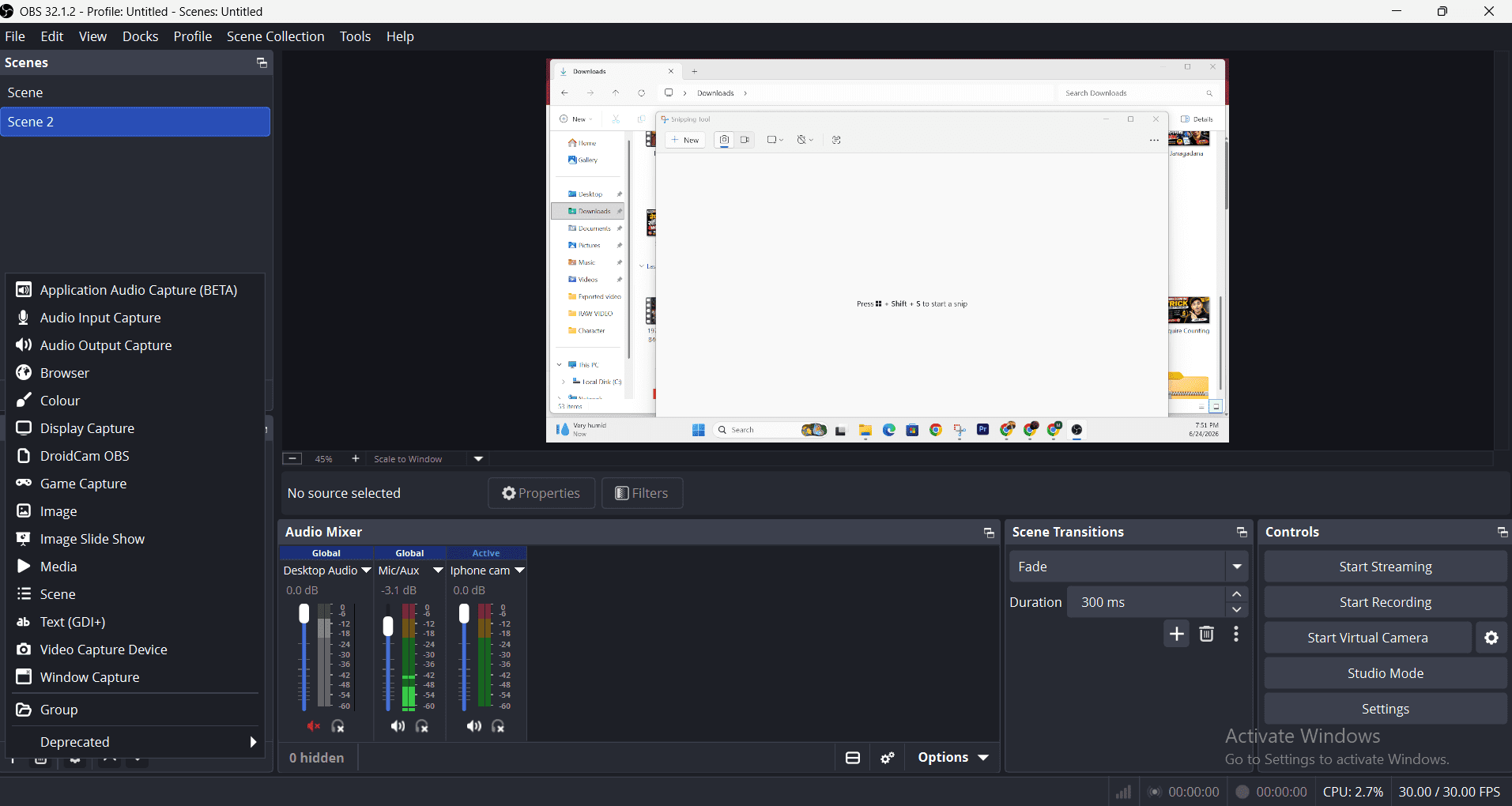
Open OBS Studio. Look at your Sources dock at the bottom, click the + (Add) button. If you see DroidCam OBS listed as a source option, the installation was successful!
How to Connect Android to OBS Studio
You can link your Android device using two different methods:
Using Wi-Fi
- Open the DroidCam OBS app on your Android phone.
- Ensure your phone and PC are connected to the exact same Wi-Fi router.
- Note the Wi-Fi IP address and Port number displayed on your phone’s screen.
- Inside OBS, open your DroidCam OBS source, type that exact IP address and Port into the connection box, and hit Activate.
Using USB Cable
- Enable USB Debugging on your Android phone (Go to Settings > About Phone > tap Build Number 7 times, then go to Developer Options > Enable USB Debugging).
- Connect your phone to your PC using a secure USB data cable.
- Open the DroidCam OBS app on your phone.
- In OBS Studio’s DroidCam source properties, switch the transport mode from Wi-Fi to USB, click Refresh, select your device from the dropdown list, and connect.
How to Connect iPhone to OBS Studio
Connecting an iOS device follows a very clean, straightforward process:
1. Install DroidCam OBS App
Open the App Store on your iPhone, search for DroidCam, and download the application. Launch it and grant permissions for the app to access your camera and microphone.
2. Connect Through Wi-Fi
Make sure your iPhone is connected to the same local network as your PC. Look at the screen of your iPhone app to locate the custom local IP address (e.g., 192.168.1.50).
3. Add Source in OBS
In OBS Studio, add a new DroidCam OBS source, type in the IP address, choose your video quality settings, and activate the feed.
How to Add DroidCam Source in OBS Studio
Once the software components are communicating, setting up your actual video layer takes seconds:
- Open OBS: Launch your OBS Studio workspace.
- Add Source: Locate the Sources window panel, click the
+icon. - Select DroidCam OBS: Click on DroidCam OBS from the pop-up list. Name the source dynamically (e.g., “Phone Facecam”) and click OK.
- Connect Phone: Choose your connection type (Wi-Fi or USB), enter your device details, and toggle Activate to bring your live mobile camera feed onto your canvas.
DroidCam OBS Settings for Best Video Quality
To maximize your visual output and look like a premium creator, adjust these critical configurations:
- Recommended Resolution: While the free version offers standard definition, upgrading to the Pro version unlocks pristine 1080p Full HD and even 4K Ultra HD settings. Set your resolution in the source properties to match your overall OBS canvas base resolution (typically 1920×1080).
- Recommended FPS: For normal talking-head videos, 30 FPS works perfectly. If you are doing fast movements or IRl action streams, change it to 60 FPS for maximum fluid motion tracking.
- Best Lighting Tips: Even a 4K phone sensor needs light to shine. Position a key light or ring light slightly above your eye line at a 45-degree angle. Turn off overhead ceiling lights to avoid casting harsh shadows on your face.
Fix DroidCam OBS Plugin Not Showing in OBS
If you followed the guide but can’t find the source in OBS, don’t panic. Try these troubleshooting steps:
Restart OBS Studio
The plugin initialization cycle only occurs during application startup. Ensure OBS is fully closed out in your task manager and relaunch it.
Reinstall Plugin
An incorrect installation path can hide the files from OBS. Uninstall the plugin via your Windows Control Panel, download a fresh copy, and reinstall it. Double-check that it is mapping to your main OBS Studio installation directory.
Run OBS as Administrator
Sometimes Windows security protocols prevent third-party plugins from executing. Right-click your OBS Studio desktop icon and select Run as Administrator.
Check Plugin Compatibility
Ensure your OBS version is compatible with your plugin version. If you updated OBS Studio recently to a major build, you may need to update your DroidCam Windows installer to match.
Common DroidCam OBS Errors and Solutions
Unable to Connect
- The Fix: Ensure your phone hasn’t hopped onto your cellular data network instead of your home Wi-Fi. If using USB, check that your cable supports data transfer and isn’t just a generic charging cable.
Black Screen Issue
- The Fix: This typically occurs if your phone’s camera is being used by another application background process (like your default camera app or WhatsApp). Force-close all camera apps on your device, turn the DroidCam source off and back on via the Deactivate / Activate toggle in OBS.
OBS Not Detecting Phone
- The Fix (USB): For Android users, make sure the proper USB drivers for your brand (Samsung, Google, Xiaomi, etc.) are installed on your Windows PC. For iPhone users, ensure iTunes or Apple Devices is installed so Windows can recognize the secure iOS connection framework.
Network Connection Problems
- The Fix: Ensure your router isn’t isolating connected devices (AP Isolation mode). If your router broadcasts both 2.4GHz and 5GHz bands under separate names, make sure both your PC and phone are pinned to the exact same frequency band.
DroidCam OBS vs Webcam
| Feature | DroidCam OBS | Traditional Webcam |
| Cost | Free (Affordable one-time Pro upgrade) | Paid upfront ($50 – $200+) |
| Video Quality | High / Ultra HD 4K (Uses Phone Optics) | Medium / High (Tiny internal sensors) |
| Portability | Excellent (Wireless, handheld capability) | Limited (Tethered to short USB cords) |
| CPU Impact | Low (Direct OBS hook, hardware-accelerated) | Low to Medium (Depends on external driver) |
Frequently Asked Questions (FAQ)
Is DroidCam OBS Free?
Yes! DroidCam OBS offers completely free unlimited usage at standard definitions. Unlocking pristine high-definition profiles (1080p and 4K) alongside advanced manual exposure adjustments requires a reasonable, one-time Pro upgrade purchase within the mobile app.
Can I Use DroidCam OBS on Windows 11?
Absolutely. The newest versions of the DroidCam OBS plugin are fully optimized for Windows 11 and run cleanly across modern Intel, AMD, and ARM64 system builds.
Can I Use iPhone as Webcam in OBS?
Yes. By deploying the DroidCam OBS app on iOS alongside the matching Windows plugin, your iPhone acts just like any hardware capture card source inside your scenes.
Can I Use USB Instead of Wi-Fi?
Yes. Connecting via USB is highly recommended for lengthy broadcast sessions because it eliminates potential wireless interference and provides the lowest possible input latency.
Why Is DroidCam OBS Not Showing?
This usually happens if the plugin installer path doesn’t align with where your current copy of OBS Studio runs from, or if OBS needs to be restarted to build its directory cache.
Final Thoughts
Setting up your smartphone as a dedicated webcam using the DroidCam OBS plugin is one of the smartest, most cost-effective upgrades you can give to your workspace streaming setup. By following this guide, you bypass high hardware costs and tap straight into professional-grade clarity using equipment you already own.
Take a few minutes to experiment with both your Wi-Fi and USB connection points to see which delivers the most stable results for your desktop environment. If you ran into any unexpected setup bottlenecks or found a unique camera angle you love, let us know in the comments section below!
- Best Phone Mount for Delivery Drivers (2026 In-Depth Guide)
- 8 Incredible Personal Flying Vehicles That Actually Exist (And You Can Buy One)
- Useful Simplicity: How the Honda N-Box Beats the Global EV Trend to Rule Japan’s Roads
- The BYD Bombshell: How a Former Battery Workshop Is Out-Pacing Tesla and Re-Engineering the Auto Industry
- Best Budget Mobile Phone with Good Camera (2026 Buying Guide)