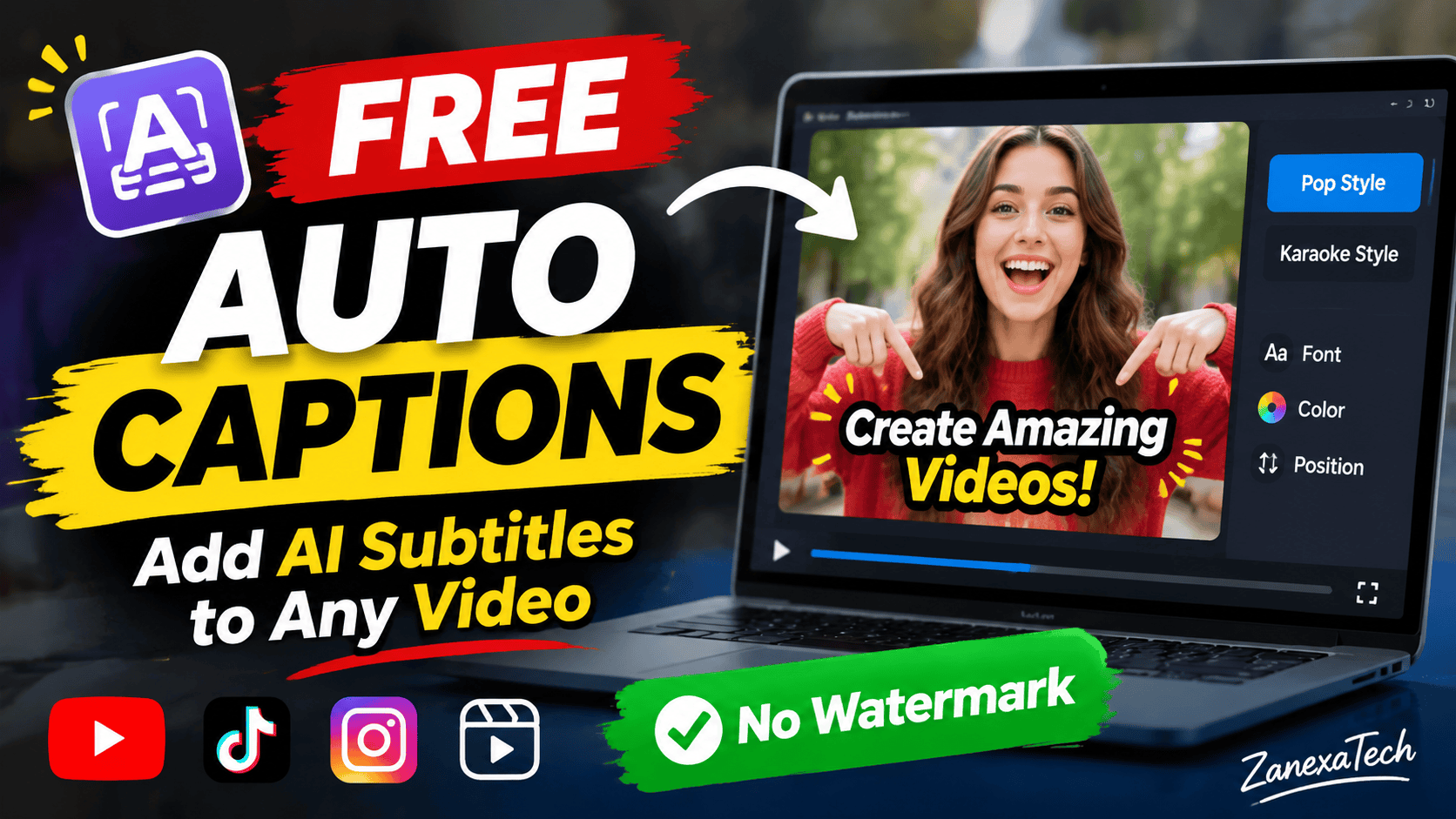
Want to add auto captions to your videos without paying for expensive video editing software? You can now generate animated AI captions for YouTube Shorts, Instagram Reels, TikTok videos, and other content completely free using a local Windows tool.
In this guide, you will learn how to add auto captions to video for free, how to install the software on your PC, and how to generate professional-looking animated subtitles automatically.
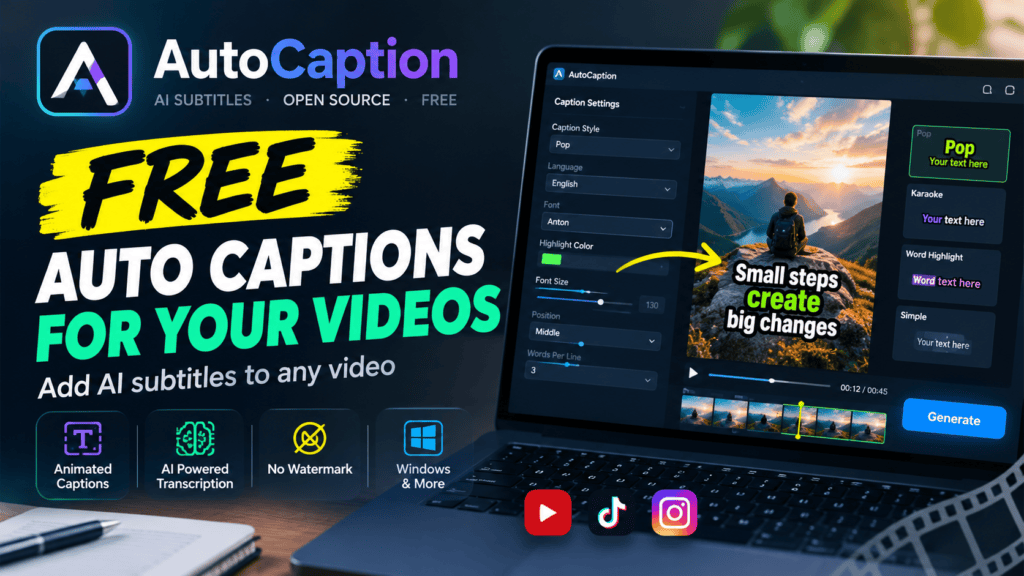
The tool we are using is AutoCaption, a free and open-source caption generator that runs locally on your computer. It uses AI speech recognition to detect spoken words, creates timed subtitles, and burns the captions directly into your video.
Unlike subscription-based captioning tools, this workflow does not require a monthly subscription or uploading your videos to an online captioning service.
Download AutoCaption for Free
AutoCaption is a free local AI caption generator for Windows, macOS, and Linux. Download the software using the button below.
[INSERT THE LARGE DOWNLOAD BUTTON HTML HERE]
The download contains the AutoCaption source ZIP. After extracting it, you can launch the Windows application using the included AutoCaption.bat file.
What Is AutoCaption?
AutoCaption is an open-source video captioning application developed by sebetancurch. It creates CapCut-style animated captions for short-form videos.
The software uses Faster-Whisper to transcribe speech into text with word-level timestamps. It then creates animated subtitles and uses FFmpeg to render the captions directly into your video.
AutoCaption supports:
- Automatic speech-to-text transcription
- Word-by-word animated captions
- Pop and karaoke caption styles
- Custom fonts and text sizes
- Highlight colors
- Subtitle positioning
- Multiple caption lines and word grouping
- SRT and ASS subtitle file exports
- Local processing on your computer
It is especially useful for creators who produce YouTube Shorts, Instagram Reels, TikTok videos, motivational clips, educational videos, and podcast shorts.
Is AutoCaption Completely Free?
Yes. AutoCaption is an open-source project released under the MIT license.
The application runs locally on your computer. There is no built-in monthly subscription for the software, and the project does not add a watermark to the generated captions.
You may still need internet access during the first installation to download dependencies and the AI transcription model. After the necessary files are downloaded, local transcription can work offline.
How to Add Auto Captions to Video for Free
Follow these steps to install AutoCaption and generate automatic subtitles on your Windows PC.
Step 1: Install Python
AutoCaption requires Python 3.10 or newer.
- Download Python from the official Python website.
- Run the installer.
- Make sure you select the option Add Python to PATH.
- Complete the installation.
Official download: https://www.python.org/downloads/
If Python is already installed on your computer, you can skip this step.
Step 2: Install FFmpeg
FFmpeg is used to process video and burn subtitles into the final video file.
On Windows, you can install FFmpeg using Windows Package Manager.
Open Command Prompt or Windows Terminal and run:
winget install Gyan.FFmpeg
Wait for the installation to finish. You may need to reopen the terminal after installation.
To check whether FFmpeg is installed, run:
ffmpeg -version
If version information appears, FFmpeg is installed successfully.
Step 3: Download AutoCaption
Free & Open Source · Windows, macOS & Linux · ZIP Download
Download the AutoCaption ZIP file from the download button above. (Add Auto Captions to Video for Free)
Extract the ZIP file to a folder on your computer.
For example:
C:\AutoCaption
Inside the extracted folder, you should see files including:
AutoCaption.batAutoCaption.commandpyproject.tomlautocaptionfolder
Do not run the source code files individually.
Step 4: Launch AutoCaption
Open the extracted folder.
On Windows, double-click:
AutoCaption.bat
The application will start its initial setup. It may automatically install the required Python packages.
The first launch may take several minutes. Do not close the application while it is installing dependencies.
Step 5: Download the AI Whisper Model
During the first transcription, AutoCaption downloads the required Whisper model.
The model download may be approximately 500 MB, depending on the model selected.
This is a one-time download for the selected model. Once the model is available locally, future transcription can work without downloading it again.
Step 6: Import Your Video
Once AutoCaption opens:
- Drag and drop your video into the application.
- Select the language spoken in the video.
- Choose a caption style.
- Adjust the font, size, color, and position.
- Select the Whisper model.
- Click Generate.
The software will automatically transcribe the audio and create subtitles.
Step 7: Customize Your Captions
AutoCaption includes two main caption styles.
Pop Style
The spoken word briefly pops and highlights as the narration continues. This style is suitable for motivational videos, YouTube Shorts, TikTok, and Instagram Reels.
Karaoke Style
The highlight moves through the words as they are spoken, creating a karaoke-style animation.
You can also customize the font, text size, highlight color, caption position, and number of words per line.
Step 8: Export Your Captioned Video
After generating the captions, click the export or Generate option in the application.
AutoCaption creates a final video with the subtitles burned into the frames. It also saves subtitle files that can be used in video editing software.
Typical output files include:
.captioned.mp4— final video with captions.ass— animated subtitle file.davinci.srt— subtitle file for DaVinci Resolve
Your video is now ready to upload to YouTube Shorts, TikTok, Instagram Reels, or Facebook Reels.
Best AutoCaption Settings for YouTube Shorts
For vertical short-form videos, the following settings are a good starting point:
| Setting | Suggested value |
|---|---|
| Caption Style | Pop |
| Language | English |
| Font | Anton |
| Highlight Color | Green or Yellow |
| Position | Mid |
| Words per Line | 3–4 |
| Font Size | Around 130 |
| Video Ratio | 9:16 |
| Whisper Model | Auto or Small |
These settings are only recommendations. You may need to adjust the font size and caption position based on your video resolution and content.
Does AutoCaption Work Without a GPU?
Yes. AutoCaption can run on a computer without a dedicated NVIDIA GPU.
The AI transcription is powered by Faster-Whisper, and the software supports CPU processing. However, transcription and video export may take longer on lower-powered computers.
If your computer has an NVIDIA GPU, optional CUDA support can improve transcription speed. NVIDIA NVENC can also accelerate video encoding on supported hardware.
You do not need to purchase a powerful graphics card just to add captions to short videos.
AutoCaption vs. Online Caption Generators
| Feature | AutoCaption | Online caption tools |
|---|---|---|
| Free local workflow | Yes | Often limited |
| Monthly subscription | No built-in subscription | Frequently required |
| Local video processing | Yes | Usually cloud-based |
| Animated captions | Yes | Depends on tool |
| Watermark | No built-in watermark | Depends on plan |
| Internet for first setup | Required | Required |
| Works offline after setup | Yes, for local models | Usually not |
| Windows support | Yes | Usually browser-based |
The main advantage of AutoCaption is that you can process videos locally without depending on a cloud captioning service.
Common AutoCaption Problems and Fixes
AutoCaption says FFmpeg is not found
Install FFmpeg and reopen the application. Check that the ffmpeg -version command works in a new terminal.
The first launch is taking too long
The application may be installing Python packages or downloading the Whisper model. Wait for the process to complete.
Captions are inaccurate
AI transcription may mishear names, accents, background noise, or unclear speech. Review the output before publishing your video.
Captions are too large or too small
Adjust the font size in the application. The appropriate size depends on your video’s resolution.
CUDA or GPU errors appear
AutoCaption can fall back to CPU processing if GPU acceleration is unavailable. GPU acceleration is optional, so you can still generate captions.
Frequently Asked Questions
How can I add auto captions to video for free?
You can use AutoCaption. Install Python and FFmpeg, download the AutoCaption ZIP, extract it, launch AutoCaption.bat, import your video, select your caption settings, and generate the final video.
What is the best free auto caption generator for Windows?
AutoCaption is a useful free local option for users who want animated captions without a monthly subscription. Other tools may be more convenient if you prefer a browser-based workflow.
Can I add captions to YouTube Shorts automatically?
Yes. AutoCaption can generate animated subtitles and burn them into a vertical video suitable for YouTube Shorts.
Does AutoCaption add a watermark?
The application does not include a built-in watermark in its generated videos.
Can I use AutoCaption for monetized videos?
The software is released under the MIT license. Review the license and any relevant third-party component terms if you use it commercially. Also follow the monetization and originality rules of the platform where you publish.
Does AutoCaption support languages other than English?
The transcription engine supports multiple languages. Results depend on the selected model and the clarity of the spoken audio.
Can I use AutoCaption without internet?
After installing the application and downloading the required models, local transcription can work offline.
Conclusion
Adding automatic captions to videos does not have to be expensive. AutoCaption provides a free local solution for generating animated subtitles and exporting captioned videos.
If you create YouTube Shorts, TikTok videos, Instagram Reels, or educational content, this tool can save time by automatically transcribing speech and rendering captions.
Download AutoCaption, follow the installation guide, and start creating captioned videos for free.
AutoCaption is an independent open-source project. ZanexaTech is not the developer of the software. Download the source from the official project repository and review its license before commercial use.
- Nokia 2360 Flip Price, Specifications, Features, India Launch Date and Review
- How to Add Auto Captions to Video for Free (No Watermark) 2026
- MacBook Pro PROLED Touchscreen: Price, Specs, Features & Everything to Know
- Samsung Galaxy A08: Price, Specs, Features & Everything to Know
- Vivo X500 Price: Price, Specs, Features & Everything to Know