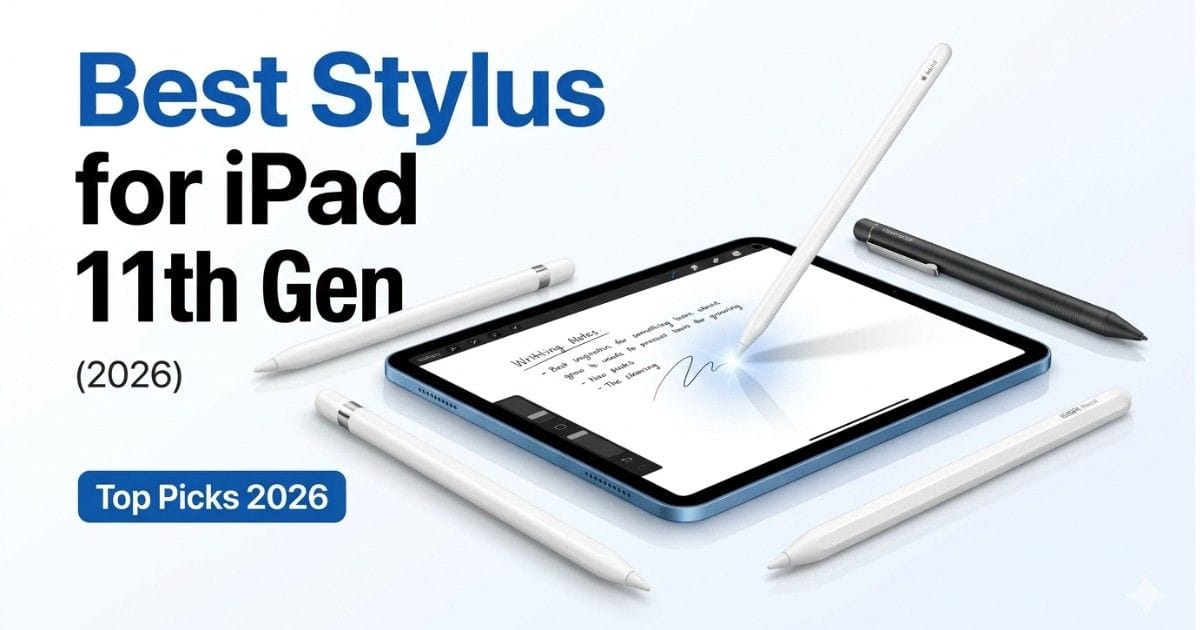
If you own an iPad 11th generation, you already know it’s a powerful device. But without a good stylus, you’re only using half of its potential. Whether you sketch, take notes, edit photos, or run a business, the right stylus can turn your iPad into a serious productivity machine.
In this guide, we’ll break down the best stylus pens for iPad 11th generation, based on real features, compatibility, and performance. No hype, no fake specs-just practical insights to help you choose the right one.
Why You Need a Stylus for iPad 11th Generation ?
A stylus isn’t just for artists anymore. Today, it helps:
- Students take faster, cleaner notes
- Designers draw with precision
- Business owners sign documents instantly
- Content creators edit images and videos smoothly
Typing works. But writing feels natural. And sometimes, natural wins.
Compatibility: The First Thing You Must Check
Before buying any stylus, confirm compatibility.
The iPad 11th generation (expected base iPad lineup) usually supports:
- Apple Pencil (USB-C or 1st Gen depending on model)
- Third-party active styluses
Important: Not every stylus works with every iPad. Always check official compatibility.
Best Stylus Pens for iPad 11th Generation
Below are the top options based on performance, reliability, and real-world use.
1. Apple Pencil (USB-C)
Key Features
- Pixel-perfect precision
- Tilt sensitivity
- Magnetic attachment (on supported models)
- USB-C charging
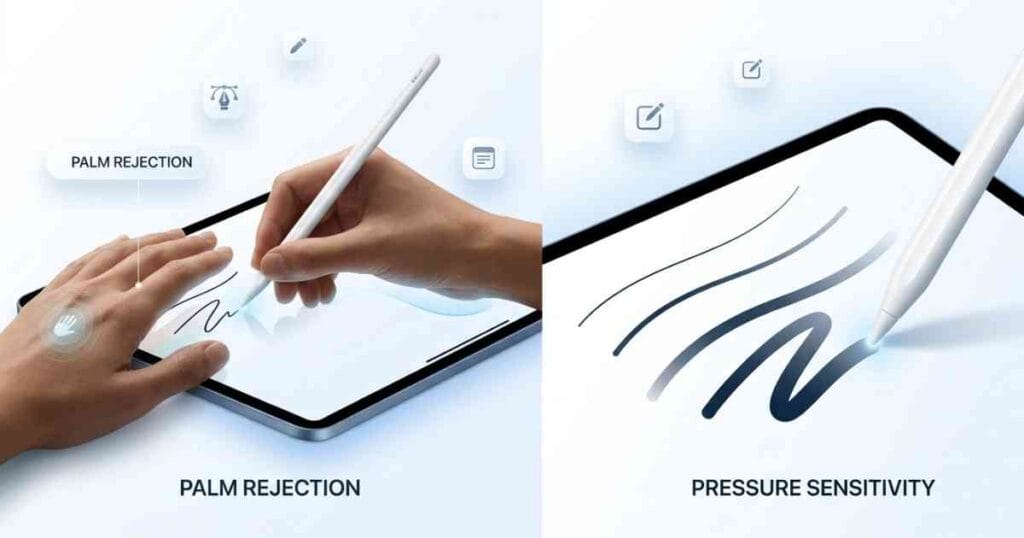
- Palm rejection
Why It Stands Out ?
Apple designed this stylus specifically for iPads. That means zero lag, perfect accuracy, and smooth performance across all apps.
If you use apps like:
- Notes
- Procreate
- GoodNotes
- Adobe Fresco
You’ll feel the difference immediately.
Limitations
- No pressure sensitivity (compared to Apple Pencil 2)
- Slightly expensive
Best For
- Students
- Casual artists
- Daily productivity users
2. Apple Pencil (1st Generation)
Key Features
- Pressure sensitivity
- Tilt support
- Lightning charging
- Strong app support
Why It Still Works in 2026
Despite its age, the 1st Gen Apple Pencil still delivers excellent performance. It supports pressure sensitivity, which matters for artists and designers.
Limitations
- Awkward charging design
- No magnetic attachment
- Needs adapter for newer iPads
Best For
- Digital artists
- Handwriting lovers
- Budget users who want Apple quality
3. Logitech Crayon (USB-C Version)
Key Features
- Apple-approved stylus
- Pixel-level precision
- Tilt support
- Durable build
- No pairing required
Why It’s Popular
Logitech Crayon offers a simple experience. Turn it on and start writing—no Bluetooth pairing, no setup headaches.
It works smoothly with iPadOS and supports most apps.
Limitations
- No pressure sensitivity
- Slightly thicker design
Best For
- Students
- Classroom use
- Everyday note-taking
4. Adonit Note+ (or Adonit Neo Series)
Key Features
- Pressure sensitivity
- Programmable shortcut buttons
- Palm rejection
- USB charging
Why It’s a Strong Alternative
Adonit offers more control features than many budget styluses. Shortcut buttons help speed up tasks like undo/redo.
You get near-Apple performance at a lower cost.
Limitations
- Requires app compatibility for full features
- Slight learning curve
Best For
- Designers
- Power users
- Productivity-focused creators
5. ESR Digital Pencil (Budget Option)
Key Features
- Affordable price
- Palm rejection
- Smooth writing
- USB-C charging
Why It’s Worth Considering
If you don’t want to spend a lot, ESR provides solid performance for basic tasks.
You can:
- Take notes
- Annotate PDFs
- Do light drawing
Limitations
- No pressure sensitivity
- Slight lag compared to Apple Pencil
Best For
- Budget users
- Beginners
- Backup stylus
Quick Comparison Table for Best Stylus Pen
| Stylus Model | Pressure Sensitivity | Palm Rejection | Charging Type | Best Use Case |
|---|---|---|---|---|
| Apple Pencil USB-C | No | Yes | USB-C | Students & daily users |
| Apple Pencil 1st Gen | Yes | Yes | Lightning | Artists & designers |
| Logitech Crayon | No | Yes | USB-C | Students & classrooms |
| Adonit Note+ | Yes | Yes | USB | Power users & creators |
| ESR Digital Pencil | No | Yes | USB-C | Budget users |
Price Comparison (Different Regions)
Prices of stylus pens can vary depending on country, taxes, and availability. Here’s an approximate comparison:
| Stylus Model | USA ($) | India (₹) | Nepal (NPR) | UK (£) |
|---|---|---|---|---|
| Apple Pencil (USB-C) | $79 | ₹6,900 – ₹7,900 | NPR 11,000 – 13,000 | £79 |
| Apple Pencil (1st Gen) | $99 | ₹8,500 – ₹10,500 | NPR 14,000 – 17,000 | £99 |
| Logitech Crayon (USB-C) | $69 | ₹5,500 – ₹6,500 | NPR 9,000 – 11,000 | £69 |
| Adonit Note+ | $79 – $99 | ₹6,500 – ₹9,000 | NPR 11,000 – 15,000 | £75 – £95 |
| ESR Digital Pencil | $20 – $30 | ₹1,800 – ₹3,000 | NPR 3,000 – 5,000 | £20 – £30 |
⚠️ Disclaimer
Prices mentioned above are approximate and may change over time due to currency fluctuations, import duties, local taxes, and retailer pricing. Always check the official website or trusted online stores for the latest and accurate pricing before making a purchase.
What to Look for Before Buying
Choosing the right stylus depends on how you use your iPad. Focus on these factors:
1. Pressure Sensitivity
If you draw or sketch, you need this. It lets you control line thickness naturally.
Skip it if you only take notes.
2. Palm Rejection
This feature allows you to rest your hand on the screen while writing.
Without it, your iPad will feel like it’s guessing your intentions—and often guessing wrong.
3. Latency (Delay)
Lower latency means smoother writing.
Apple Pencil leads here. Budget styluses may show slight lag.
4. Charging Convenience
- USB-C is the easiest
- Lightning feels outdated
- Magnetic charging is the most seamless
5. Build Quality
A stylus should feel like a pen, not a plastic stick.
Comfort matters more than you think—especially during long sessions.
Real-World Use Cases
Let’s keep it practical.
For Students
Go for:
- Apple Pencil USB-C
- Logitech Crayon
Why? Reliable, simple, and perfect for notes.
For Artists
Choose:
- Apple Pencil 1st Gen
- Adonit Note+
Why? Pressure sensitivity and precision matter here.
For Business & Productivity
Pick:
- Apple Pencil USB-C
- Adonit Note+
Why? Fast, efficient, and works across apps.
For Budget Users
Best choice:
- ESR Digital Pencil
Why? Gets the job done without hurting your wallet.
Common Mistakes to Avoid
Even smart buyers make these mistakes:
Buying Without Checking Compatibility
Not every stylus works with every iPad. Always verify first.
Overpaying for Features You Won’t Use
If you don’t draw, you don’t need pressure sensitivity.
Ignoring Battery Life
A stylus that dies mid-meeting is not “smart tech.”
Choosing Looks Over Performance
A fancy stylus means nothing if it lags.
Are Third-Party Styluses Worth It?
Yes—but only if you choose carefully.
Apple Pencil still leads in:
- Accuracy
- Reliability
- App integration
However, brands like Logitech and Adonit offer great value.
If your work is casual, third-party options can save money without sacrificing much.
Real-World Experience Using Stylus on iPad 11th Generation
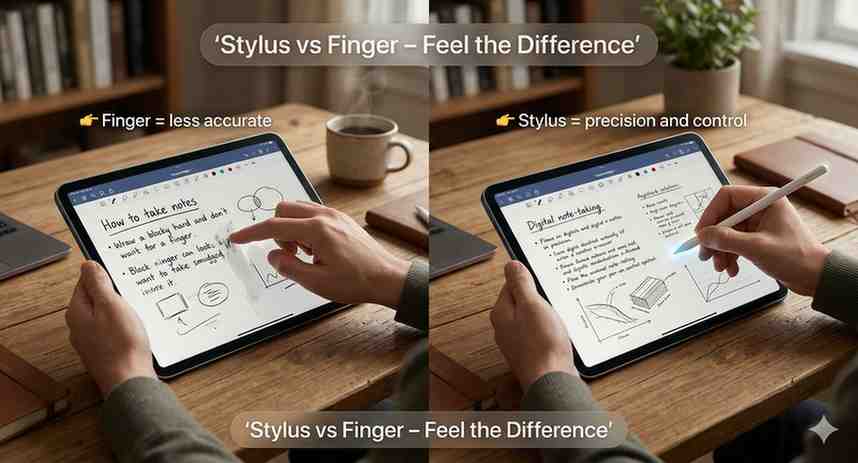
After using multiple styluses on the iPad 11th generation, one thing becomes clear quickly-this device feels incomplete without one. Writing with a stylus feels natural, almost like switching from typing on glass to writing on paper again.
For basic tasks like note-taking and PDF annotation, even budget options like ESR perform surprisingly well. The writing is smooth, and palm rejection works most of the time, though you may notice slight lag if you pay close attention. It’s not perfect, but it gets the job done without hurting your wallet.
When moving to Apple Pencil or Adonit, the difference becomes obvious. The accuracy improves, strokes feel more controlled, and there’s almost zero delay. If you sketch or do creative work, this difference is not small-it’s the difference between “usable” and “enjoyable.”
One interesting thing: once you start using a stylus regularly, going back to your finger feels awkward. It’s like trying to write an exam wearing boxing gloves.
In real-world use, the best stylus isn’t the most expensive-it’s the one that matches your daily workflow without slowing you down.
Final Verdict
If you want the best overall experience, go with:
- Apple Pencil (USB-C) for most users
- Apple Pencil (1st Gen) for artists
If you want value:
- Logitech Crayon for simplicity
- Adonit Note+ for advanced features
- ESR Digital Pencil for budget use
Conclusion
The best stylus for iPad 11th generation depends on how you use your device.
If your iPad is your notebook, choose simplicity.
If it’s your canvas, choose precision.
If it’s your office, choose efficiency.
A good stylus doesn’t just improve your workflow—it changes how you interact with your device.
And once you get used to it, going back to your finger feels like typing with boxing gloves.
Quick Summary
The iPad 11th generation becomes significantly more useful with the right stylus. For most users, the Apple Pencil (USB-C) offers the best balance of performance, reliability, and ease of use. If you need pressure sensitivity for drawing, the Apple Pencil (1st Gen) or Adonit Note+ is a better fit. Logitech Crayon keeps things simple and dependable for students, while ESR Digital Pencil is a solid budget option for basic tasks.
In short: choose based on your usage-notes need simplicity, art needs precision, and budget users can still get a smooth experience without overspending.
FAQs
Which stylus is best for iPad 11th generation?
Apple Pencil (USB-C) is the best overall. It offers smooth performance and strong compatibility.
Do all styluses support palm rejection?
No. Most modern styluses do, but always check before buying.
Is Apple Pencil worth the price?
Yes. It offers better accuracy, lower latency, and deeper iPadOS integration.
Can I use a cheap stylus for drawing?
You can, but you’ll miss pressure sensitivity and precision. Artists should invest in better tools.
Does stylus improve productivity?
Yes. It makes note-taking, editing, and navigation faster and more natural.
What pen is compatible with an 11th gen iPad?
The iPad 11th generation (A16) supports:
- Apple Pencil (USB-C)
- Apple Pencil (1st generation)
It does NOT support:
- Apple Pencil (2nd generation)
- Apple Pencil Pro
👉 This means you have two official Apple options, plus many third-party styluses (Logitech, Adonit, ESR) that work with basic features like palm rejection.
What Pencil works with iPad 11th?
Two Apple Pencils work:
1. Apple Pencil (USB-C)
- Works directly with modern iPads
- Easy USB-C charging
- Smooth writing and note-taking
- No pressure sensitivity
2. Apple Pencil (1st Generation)
- Supports pressure sensitivity (better for drawing)
- Needs adapter for charging on newer iPads
Apple confirms that both models are compatible with base iPad models like the A16 version
Which Pencil is best for iPad 11 gen?
Best Overall: Apple Pencil (USB-C)
- Simple, reliable, modern
- Best for students and daily use
- Lower cost and easier charging
Best for Drawing: Apple Pencil (1st Gen)
- Pressure sensitivity
- Better for artists and designers
👉 Key difference:
- USB-C Pencil = convenience
- 1st Gen Pencil = creative control
Quick Comparison


| Feature | Apple Pencil USB-C | Apple Pencil 1st Gen |
|---|---|---|
| Compatibility | Yes | Yes |
| Pressure Sensitivity | No | Yes |
| Charging | USB-C | Lightning (adapter) |
| Best Use | Notes & daily use | Drawing & art |
Read More: